
Protecting Your Digital Identity

1. Check your Google Account

Use Google's "See if your email address is on the Dark Web" Feature

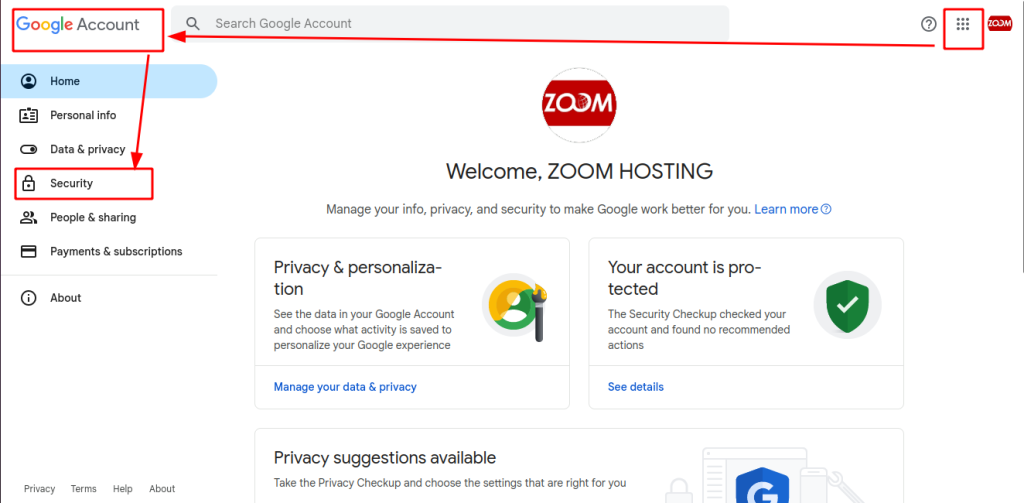
  • Go to “Manage your Google Account.”
  • Navigate to “Security.”
  • Scroll down to the section labeled “See if your email address is on the Dark Web.”
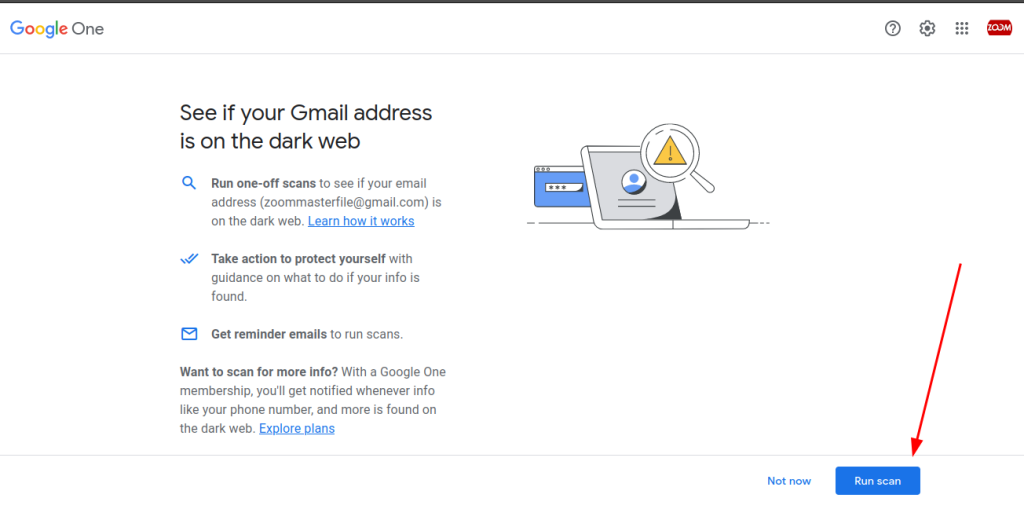
  • Click “Run a scan with Google One.”
  • Follow the prompts to run the scan.
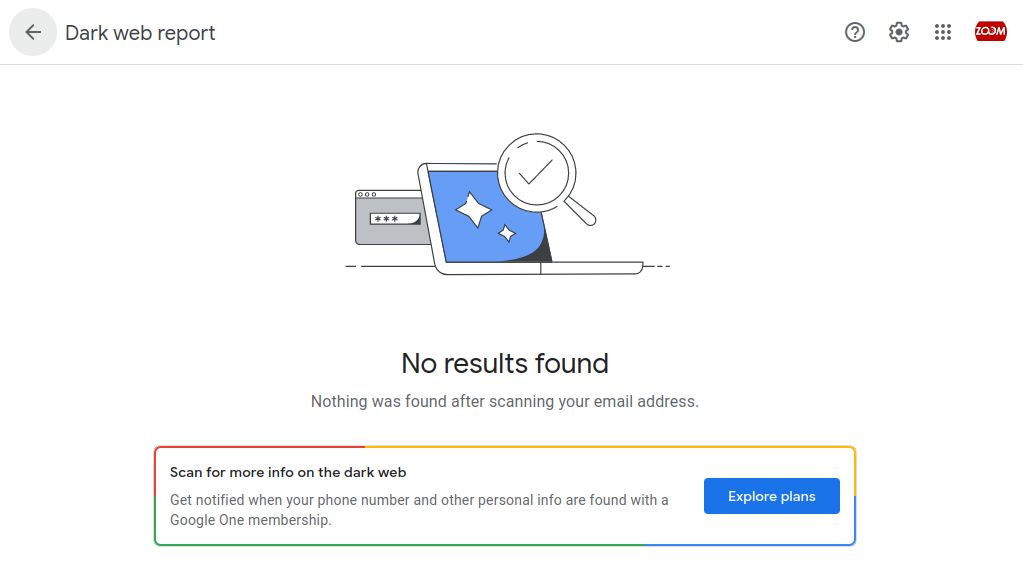
  • Google’s scan will check if your email address has appeared in data breaches and on the Dark Web.
  • If your email address is found in such a scan, it’s essential to take immediate action to secure your accounts and personal information, including changing passwords and enabling two-factor authentication where available.
  • This extra step can provide an added layer of security to ensure your email address remains protected online.

2. Check your email address

Use this button to check your email address if has been pwned.

3. How do you get infected?

Mitigate infection by following basic end-user protection.

Protective Measures

Keep systems and applications updated

By staying informed, you empower yourself to make right decisions

Think before you click

Use strong password and update the password regularly

4. How can I protect my Windows device?

Follow below simple steps to protect your workstation/s

When should I use Microsoft Defender Offline?

Run Microsoft Defender Offline if:
  • Windows Security (also called Windows Defender Security Center in previous versions of Windows) detects rootkits or other highly persistent malware on your PC and recommends you use Microsoft Defender Offline. 

  • You suspect your PC might have malware hiding on it, but your security software doesn’t detect anything. 

How do I use Microsoft Defender Offline

  1. Save any open files and close all apps and programs.

  2. Select Start , and then select Settings  > Update & Security  > Windows Security  > Virus & threat protection

  3. On the Virus & threat protection screen, do one of the following:

    > In an up-to-date version of Windows 10 or Windows 11: Under Current threats, select Scan options.

    > In older versions of Windows 10: Under Threat history, select Run a new advanced scan.

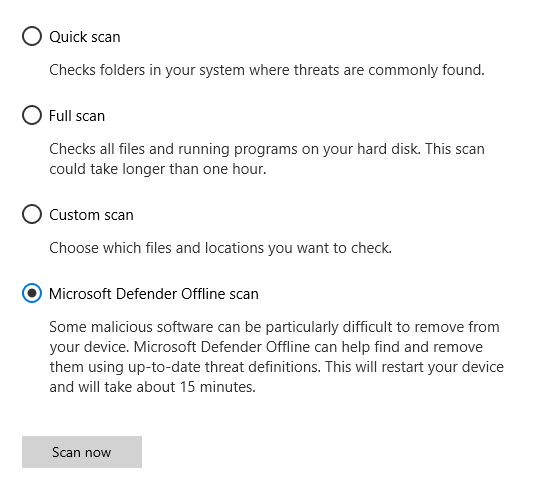
  4. Select Microsoft Defender Offline scan, and then select Scan now.
You’ll be prompted that you’re about to be signed out of Windows. After you are, your PC should restart. Microsoft Defender Offline will load and perform a quick scan of your PC in the recovery environment. When the scan has finished (usually takes about 15 minutes), your PC will automatically restart.

Notes:

  1. You typically need administrator rights on the PC on which you plan to run Microsoft Defender Offline.

  2. If you experience a Stop error on a blue screen when you run the offline scan, restart your device and try running a Microsoft Defender Offline scan again.

Where can I find scan results?

To see the Microsoft Defender Offline scan results:

  1. Select Start , and then select Settings  > Update & Security  > Windows Security  > Virus & threat protection.

  2. On the Virus & threat protection screen in Windows 10, under Current threats, select Scan options, and then select Protection history (In previous versions of Windows it may say Threat history).

5. How do we protect our WHMCS?

Simple steps for greater security and peace of mind for our company resources and data.

To protect our WHMCS, we are now implementing Two-Factor Authentication (2FA).

Step 1

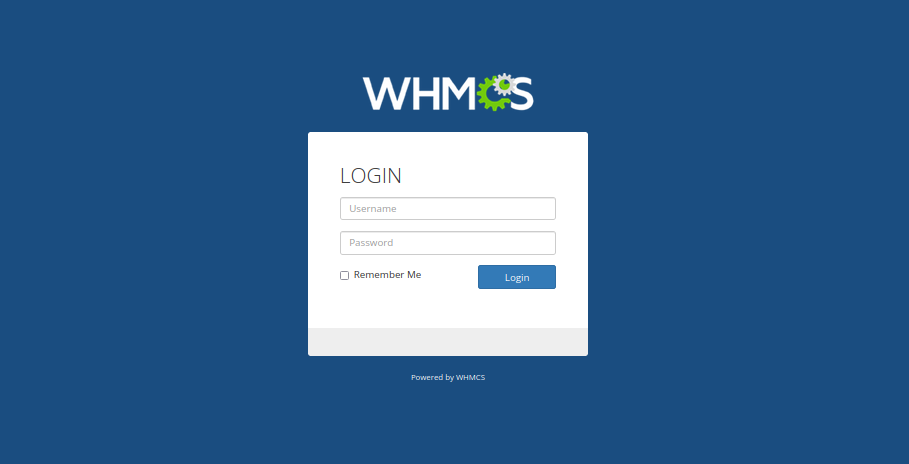
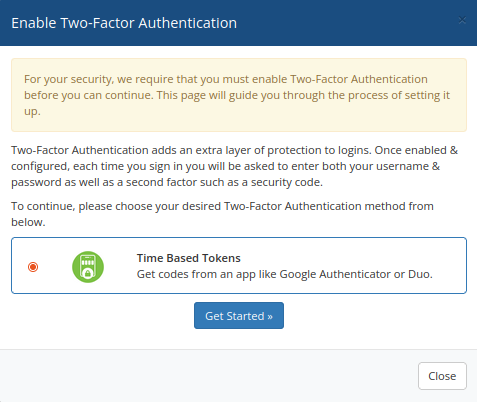
On your next login, the system will require everyone to enable 2FA before accessing WHMCS.

Click Get Started to proceed.

Step 2

Download Google Authenticator on your smart phone/device.

Step 3

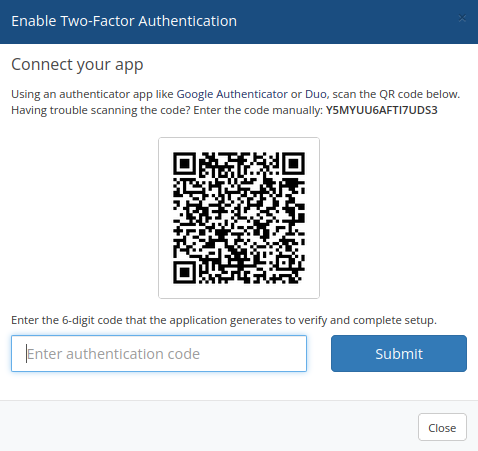
Connect the Google Authenticator by scanning the QR code from the WHMCS login page and type the 6-digit code generated from your phone/device and click Submit.

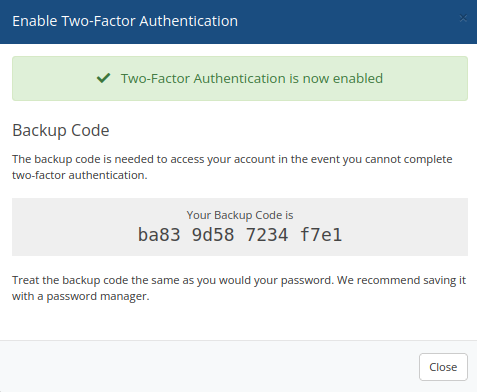
Successful!

2FA is now enabled.

You must need your phone/device every time you access the WHMCS.

For security purposes, you must secure a copy of your Backup Code.

FAQ

You have three (3) layers of authentications to validate;

1. The general login for accessing zoomaster page.

2. Your individual system access provided by the Systems Administrator.

3. The 6-digit code from your smart phone.

You may download the Google Authenticator for your Apple devices here.

You may download the Google Authenticator for your Adroid devices here.

Use your Backup Code to login your WHMCS access.

If you still cannot login, you are now fucked up.

Just kidding 😇 simply contact our Systems Administrators and they will be happy to assist you.


by: Research and Development Ad Hoc team

Scroll to Top